
Thing 1: Static website hosting on S3
I used to create content on a blog I loving called Josh as a Service where I documented various zany projects such as Dinner as a Service which demonstrated integration points in VMware VCAC/VRA/Aria to external API’s by using a Raspberry PI & Arduino and a Sous Vide cooker. To make food. It was awesome.
Since then I moved on to various other roles. A pandemic happened. I spent more time on bikes. My town burned down. Traveled a bunch.
Fast forward a bit and tech looks quite a bit different now. What I used to do is less of a thing, and other things are much more popular. So here we are. Let’s learn some new things together.
Goal of this thing:
What is the easiest way to host a very basic static site?
I used WordPress in the past. Being a nerd of course I wanted to self host it. So that required a compute instance somewhere. I used AWS, I used GCP, etc. That costs money. It’s 2024, there’s gotta be something easier that’s not a hosted instance right? I thought I remembered hearing that you could turn an S3 bucket into a website somehow but didn’t know any details. So let’s figure that out.
All steps and screenshots are accurate as of August 2024. Things change. Your results may vary, people of the future.
Part 1: DNS and domain configurations
I have an old domain left over (from an addiction to buying domains I someday maybe but probably will never use ever): notnormal.cloud. Let’s start there. Anywhere I use this domain here, you would substitute with your own.
I have this domain registered in the very awesome service Porkbun, not in Route 53 (AWS’ DNS service) so I need to make some adjustments. This would be the same if yours is in GoDaddy, Name.com or anywhere else. Alternatively you could transfer the domain from your current service into Route 53 but that takes more time and I want it done noooow.
This process essentially keeps your domain at the domain registrar of your choice, but switches to having AWS perform the DNS functions so it can be tightly integrated into the rest of their services.
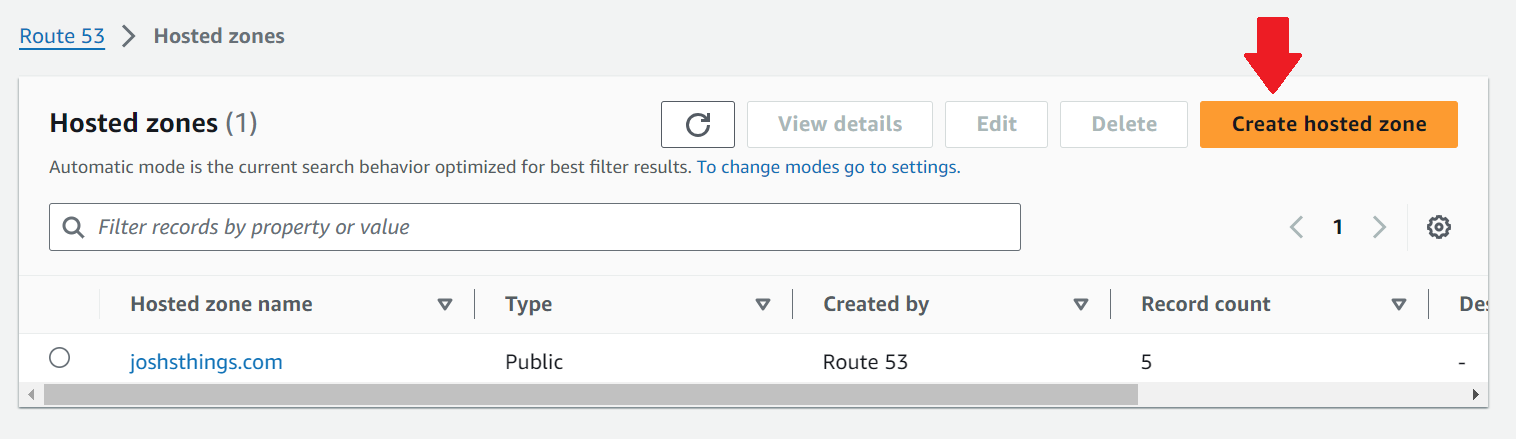
In Route 53’s Hosted zones section, click Create hosted zone.
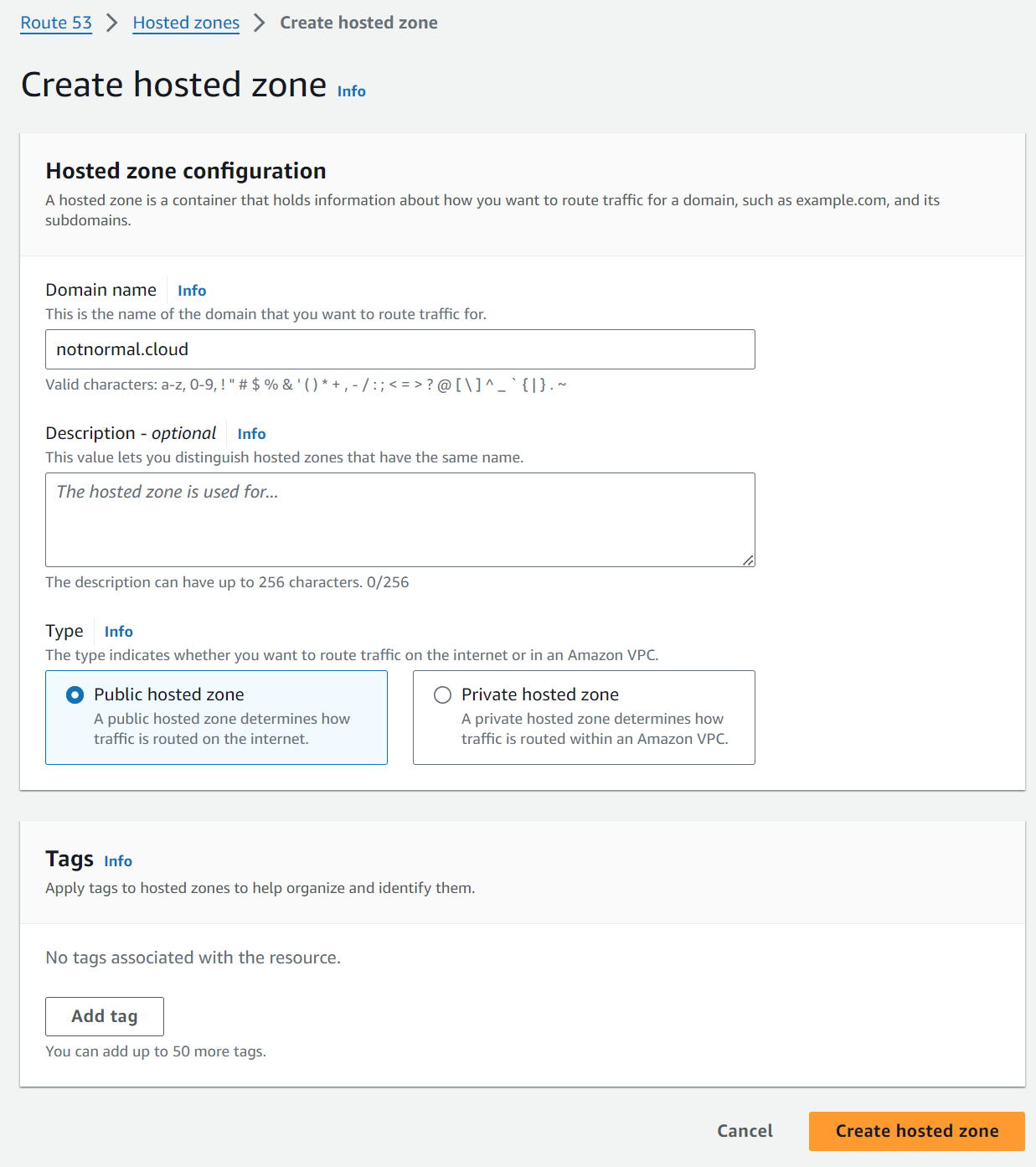
Fill in the domain name, leave the rest defaults and click create.
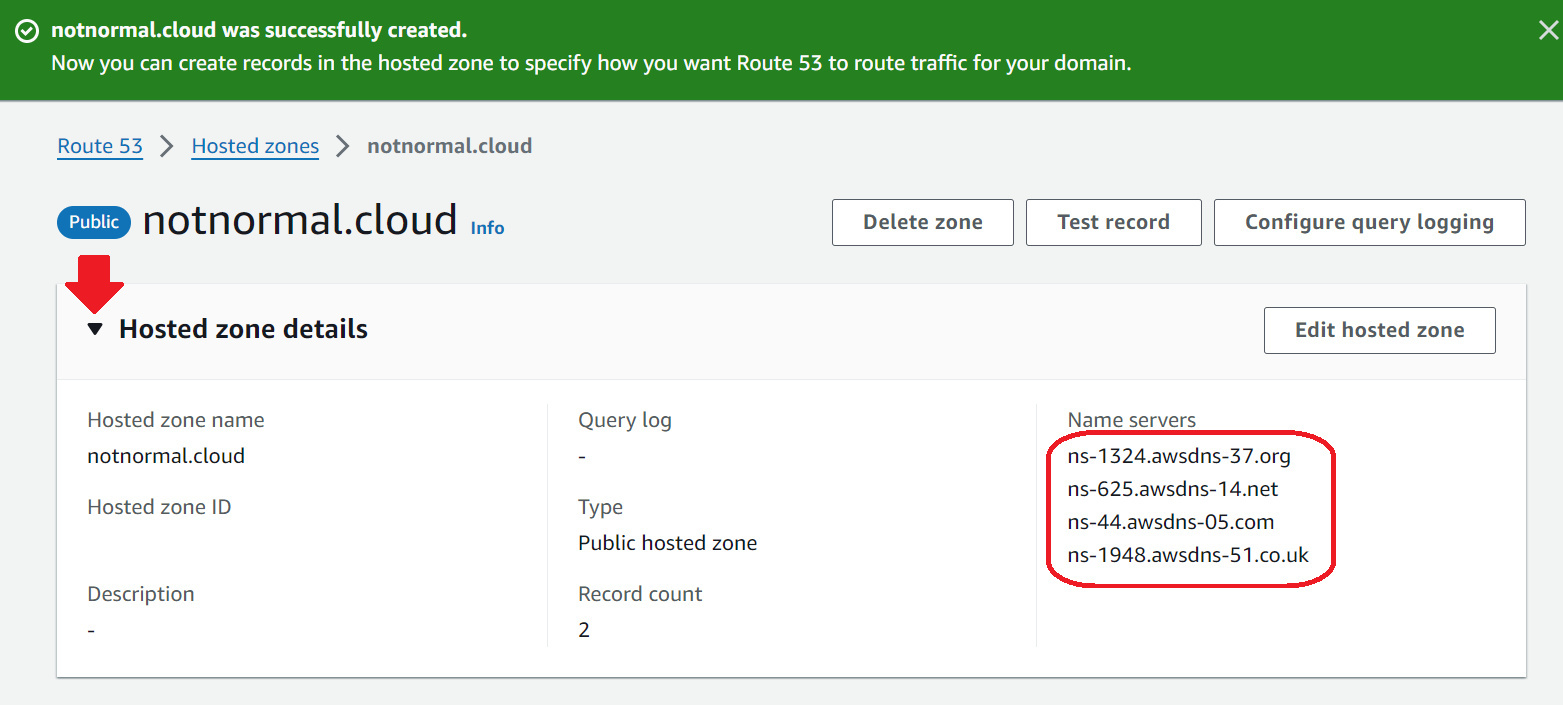
Expand the Hosted zone details at the top. Find the name server list and copy them to your clipboard.
Jump over to your domain registrar and figure out where you edit the Nameservers. Here on Porkbun, it’s not the DNS settings (that is where you edit the actual records), but click NS for Nameservers.
Here we see the defaults for Porkbun that are configured for you. Clear these out and paste in the list from Route 53
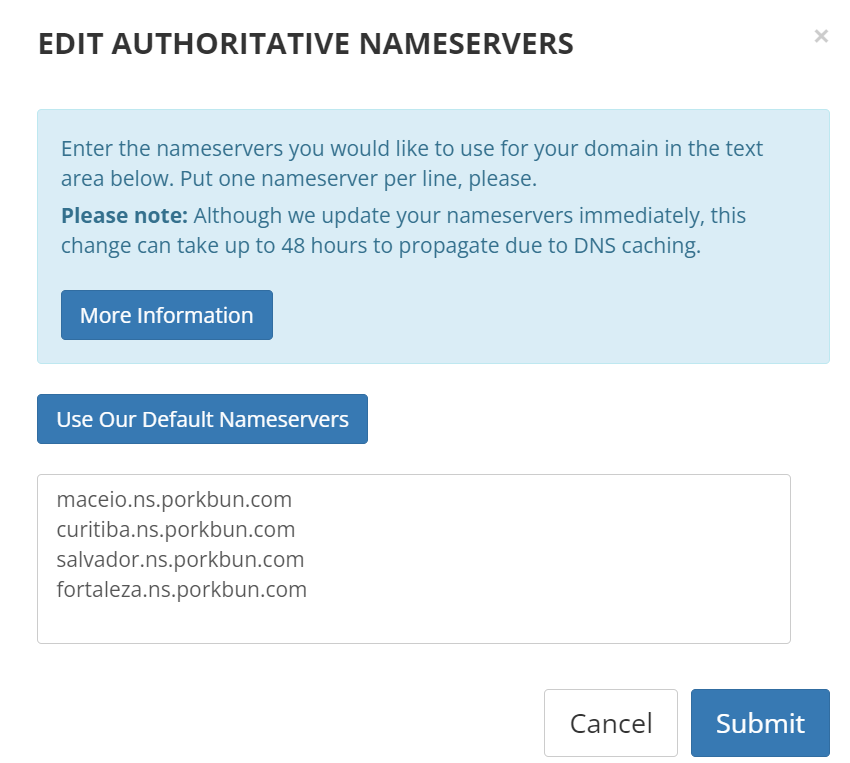
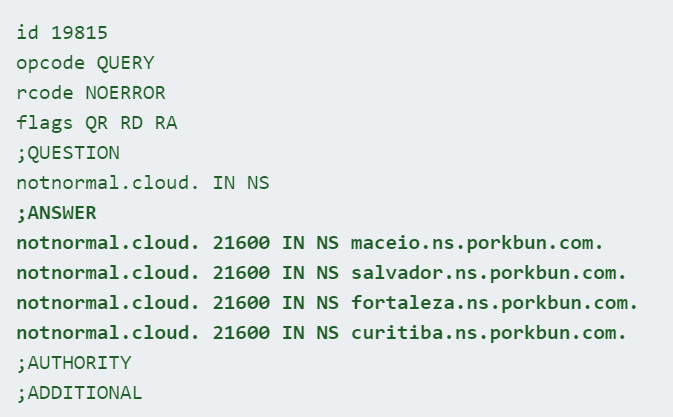
After you save the new server list, it can take time to propagate. In the previous screenshot Porkbun warned it could take up to 48 hours. Usually it’s a lot faster. You can use any number of tools to test this. Google has a toolbox to help test various different kinds of records.
You can see from this output the settings are not in place throughout the internet just yet. Let’s move on with other configuration while we wait.
Part 2: Initial S3 bucket creation
While we wait for that to happen, let’s set up the S3 bucket. We’re actually going to create two, but let’s not split hairs just yet. Navigate to S3 and click Create bucket.

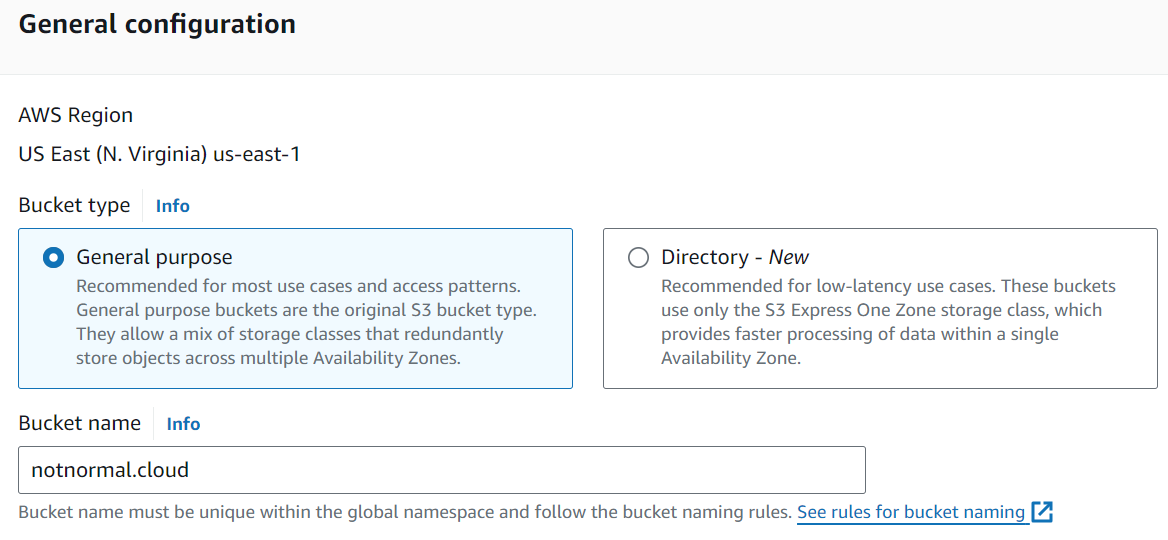
In General configuration plug in your domain name without a prefix.
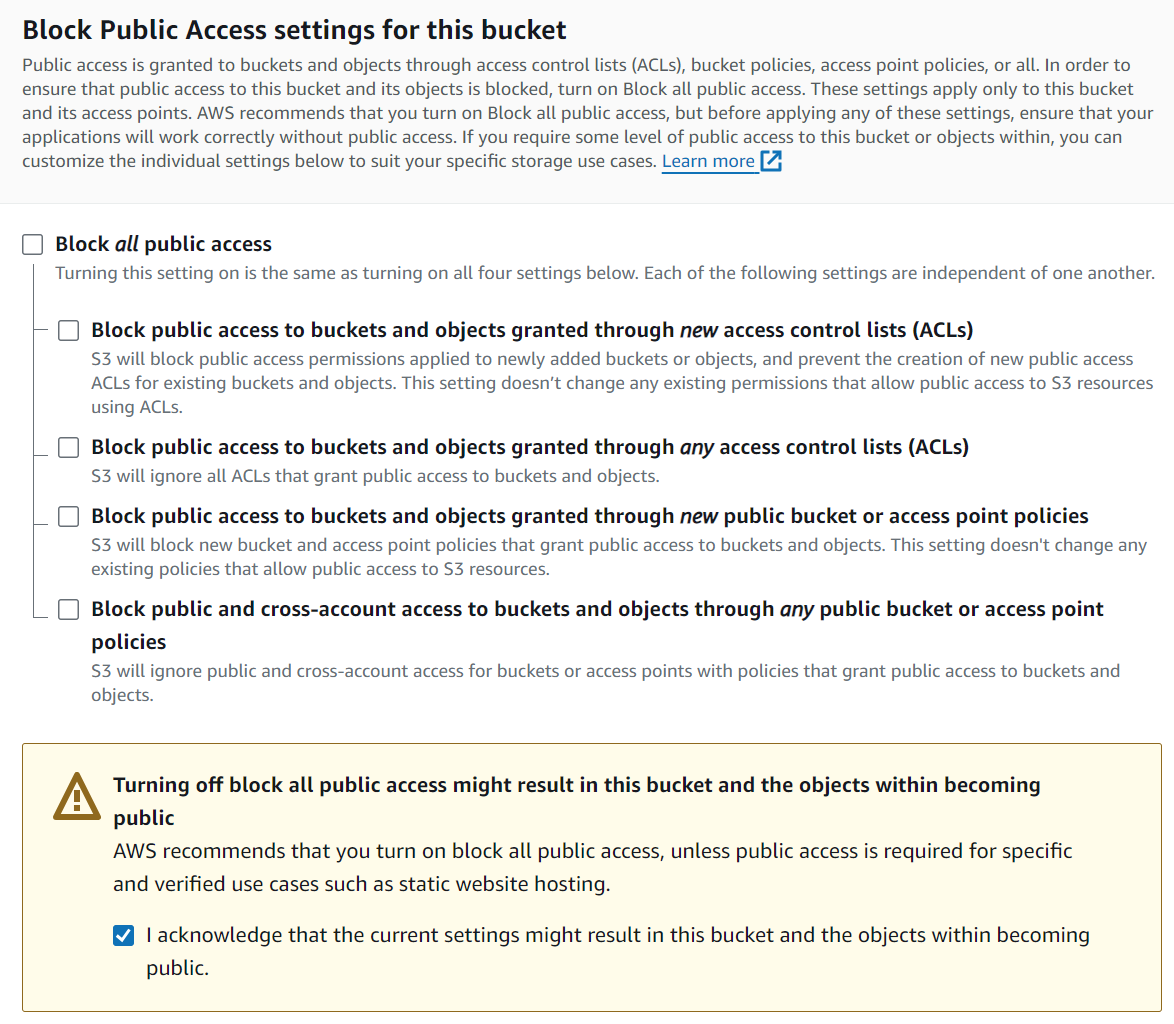
Further down, uncheck the box for Block all public access. This may be scary at first, but it’s key. We need this bucket to be able to be read from the world.
If you are using a corporate AWS account, you may have a policy in place that prevents this.
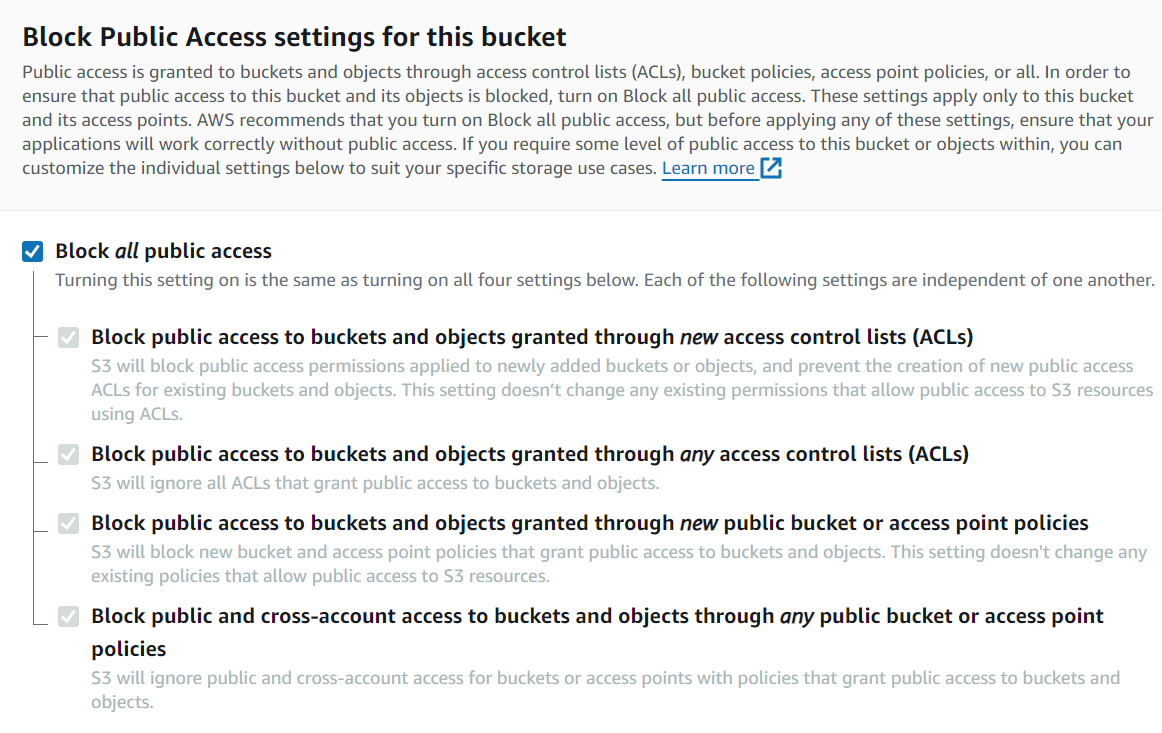
AWS is doing their best to make sure you do not do something unintentional. Click this new box that shows up to verify that YES YOU REALLY WANT TO DO IT.
Now scroll further down and click Create bucket.
Go into the configuration settings for the bucket notnormal.cloud, click on properties, find Static website hosting at the very bottom, click edit.

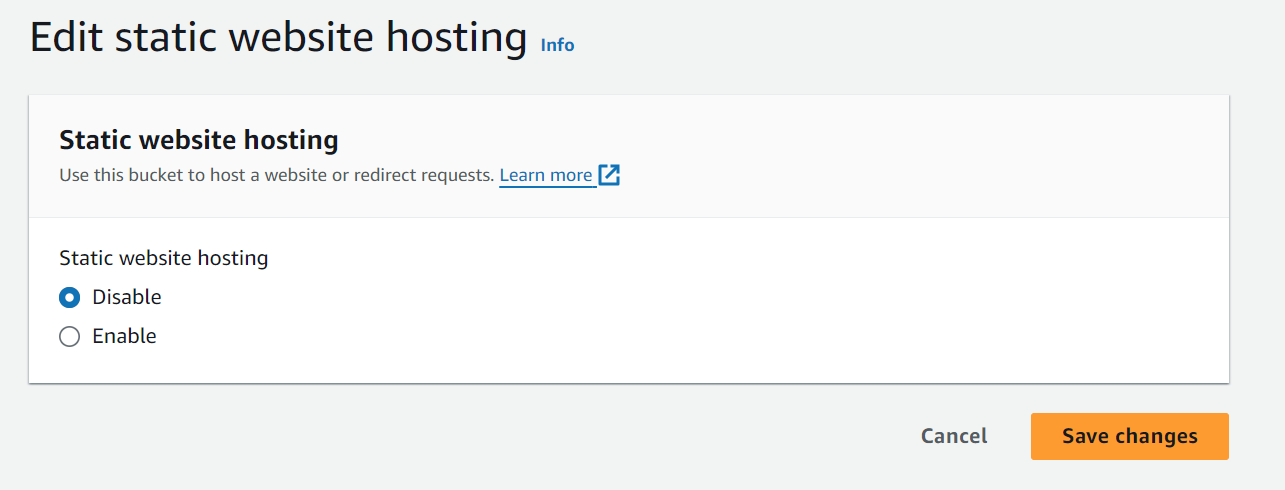
At first you’ll see static web hosting is disabled like this:
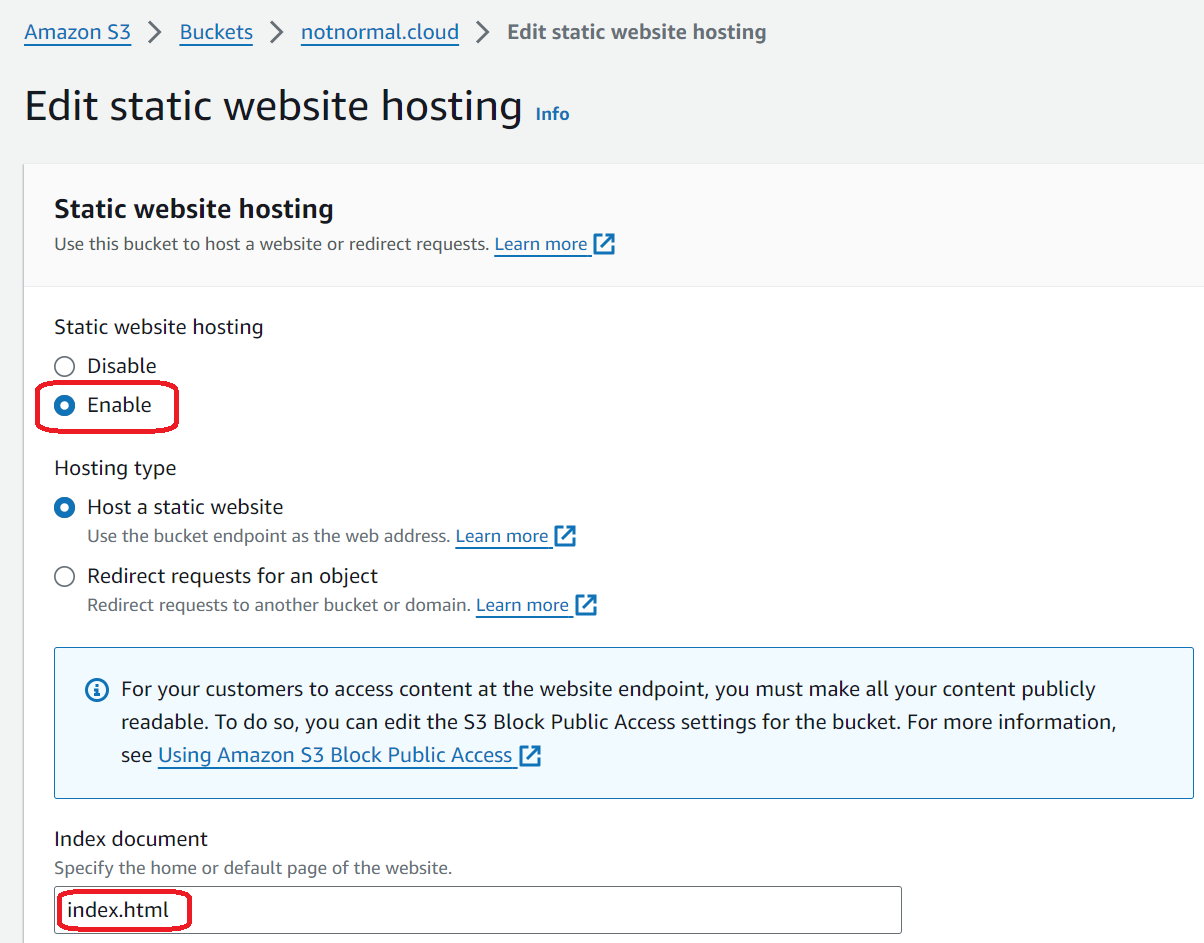
Click Enable, enter index.html for the Index document. Click Save changes.
Now if you browse back to the Static website hosting section again, you’ll see a URL:
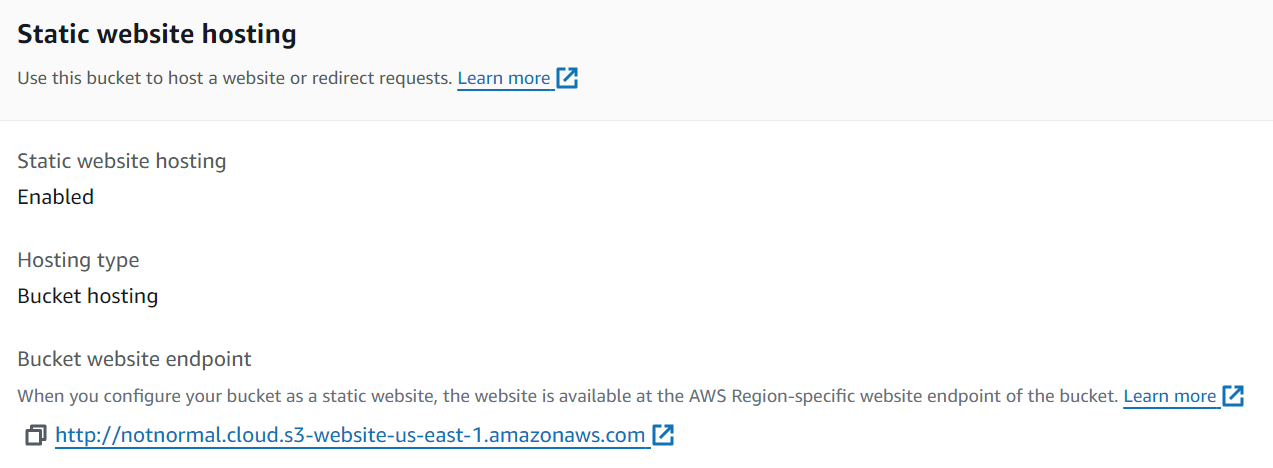
Clicking on that will give you a scary error message at this point. We still have a few things to do.

Let’s upload a simple HTML file. Copy this text block (or anything of your own) to a index.html file and save it locally.
<html>
  <head>
    <title>Hello World</title>
  </head>
    <body>
      <h1>Hello World, from my S3 Bucket!</h1>
    </body>
</html>
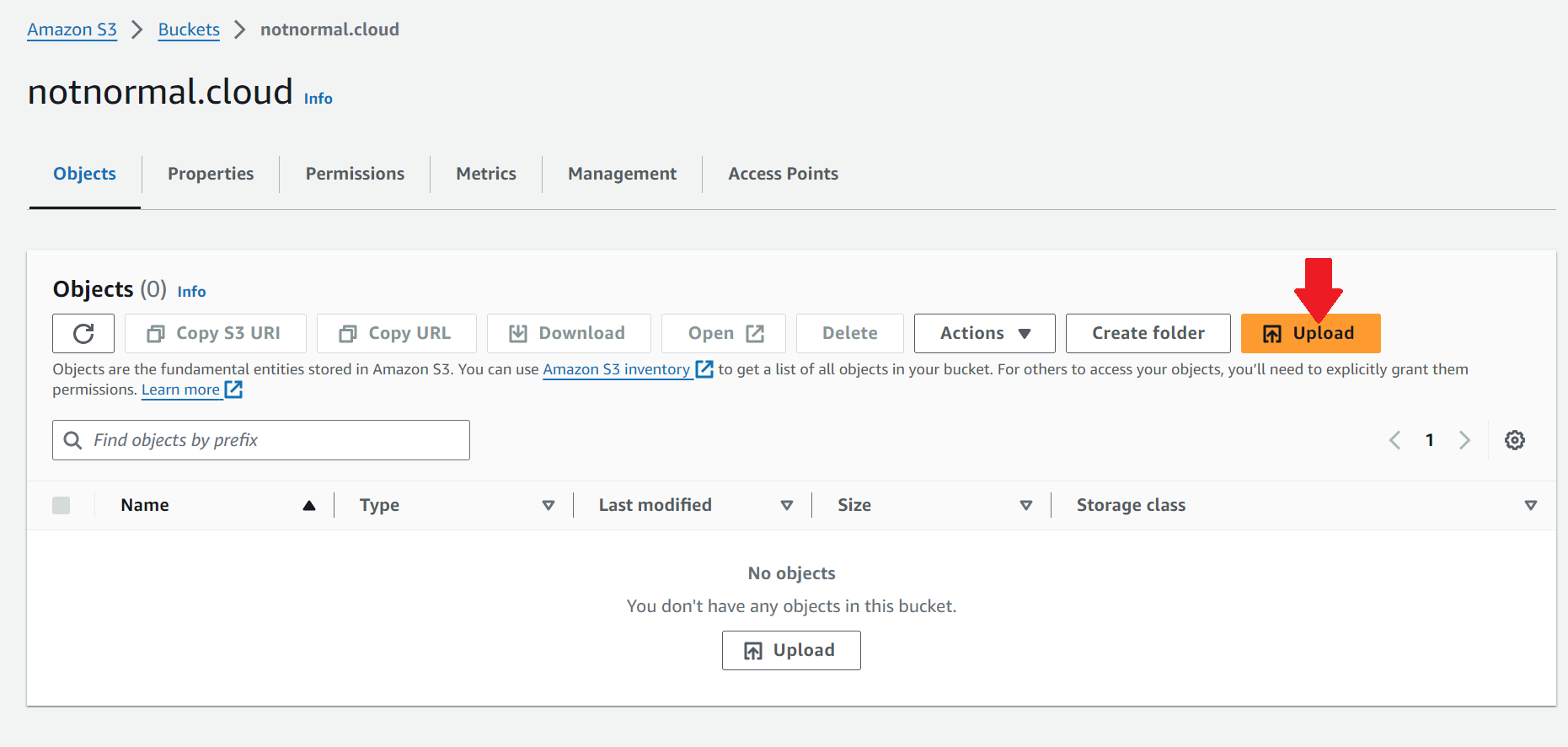
Browse to your S3 bucket, click Upload
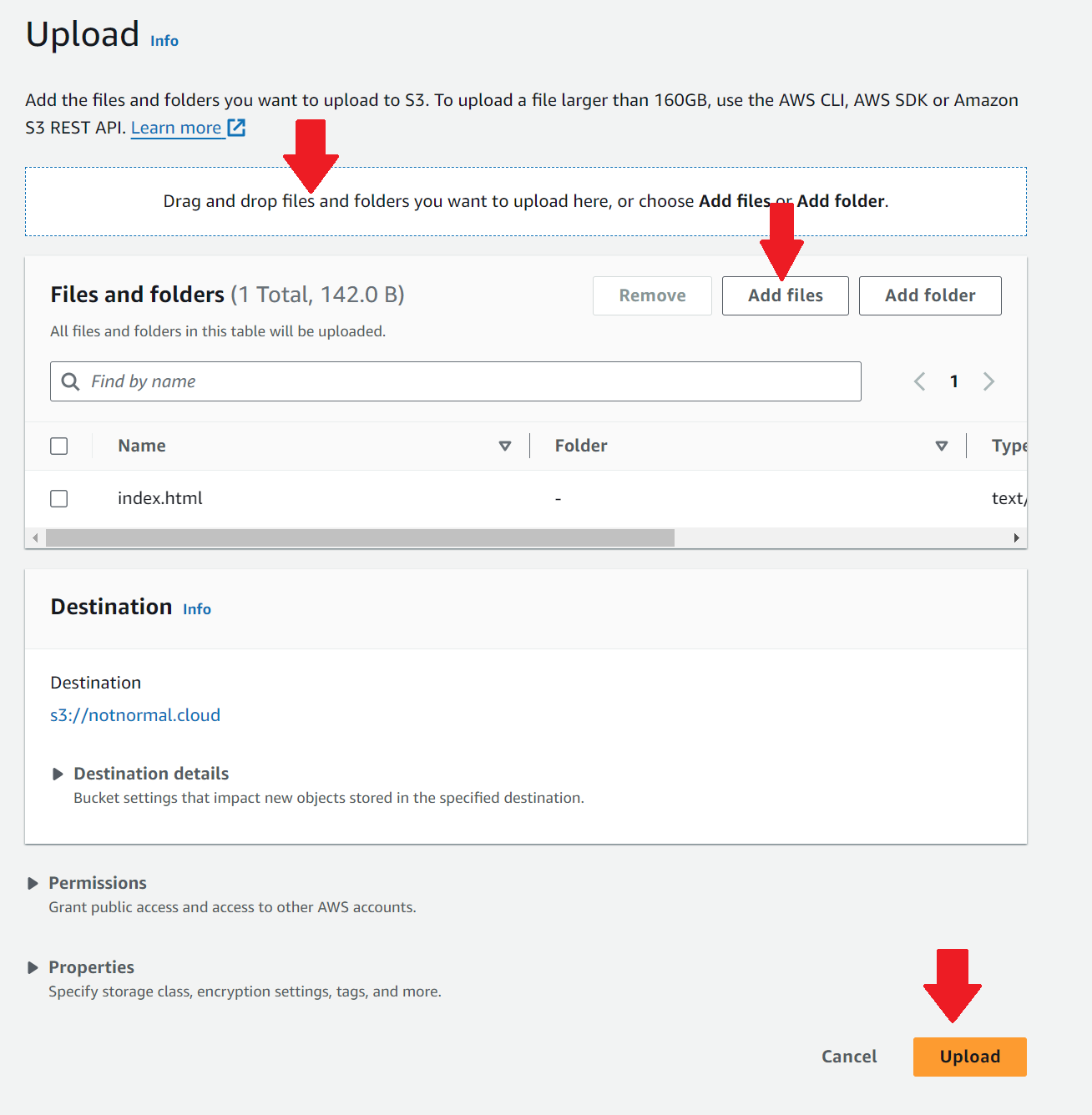
Drag and drop the file, or click Add files. Click Upload.
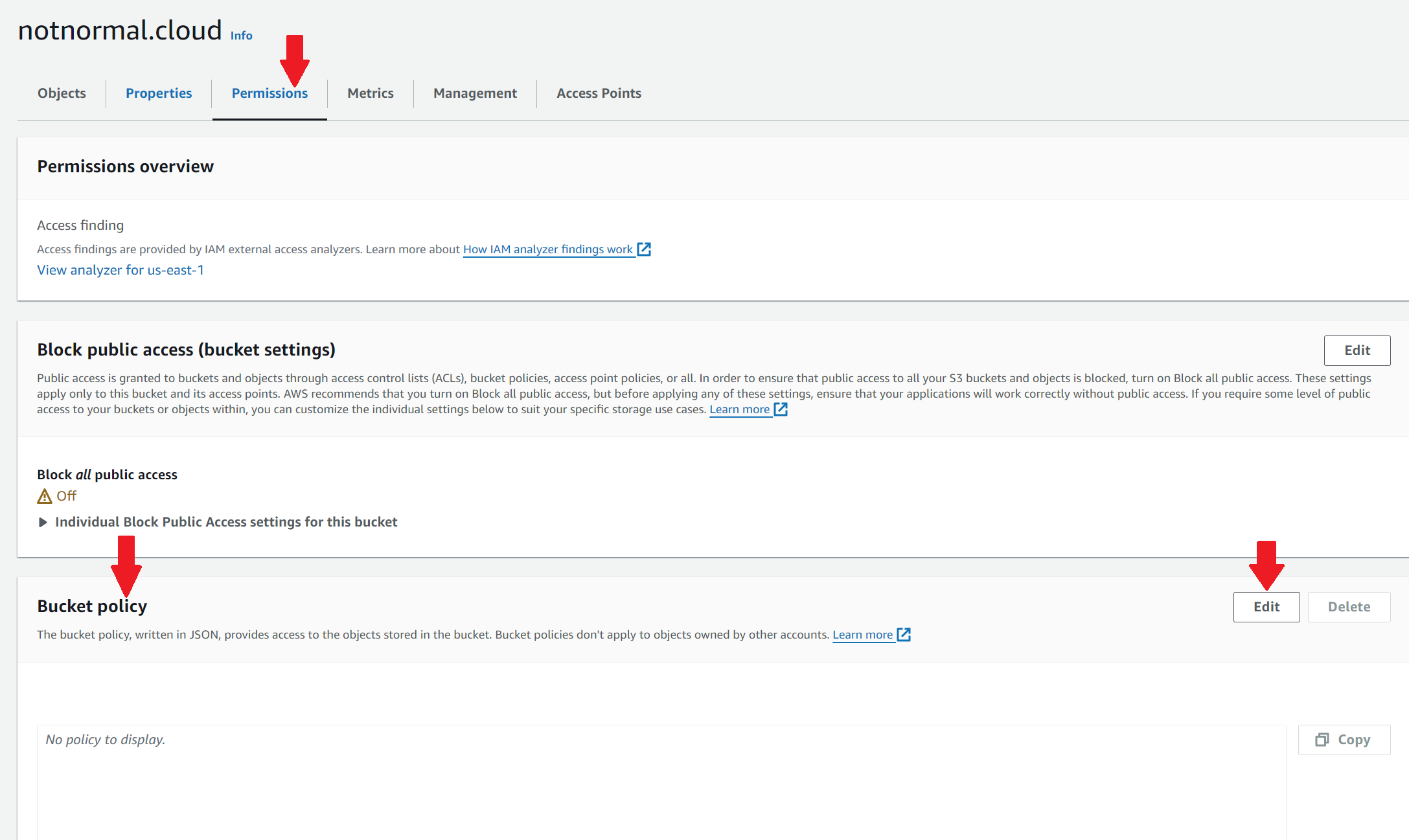
Now we have one last security setting to tweak to allow access to the bucket over the web. Click on the permissions tab of the bucket settings. Scroll down to Bucket policy and click edit.
Copy and paste this bit of text into the policy box, replacing the bucket string with your own. When you edit the text BE SURE to leave the slash asterisk /* after the string within the quotes. Click Save changes.
{
   "Version":"2012-10-17",
   "Statement":[{
      "Sid":"AddPerm",
      "Effect":"Allow",
      "Principal":"*",
      "Action":[
         "s3:GetObject"
      ],
      "Resource":[
         "arn:aws:s3:::notnormal.cloud/*"
      ]
    }]
}
Now, when you refresh your web browser it should work! Note there are a few things we’ll still need to do like finish up the DNS configuration so that the domain works, make it so it works with a www prefix, and maybe you’ll want an SSL certificate to get rid of that not secure message.

Part 3: WWW Prefix
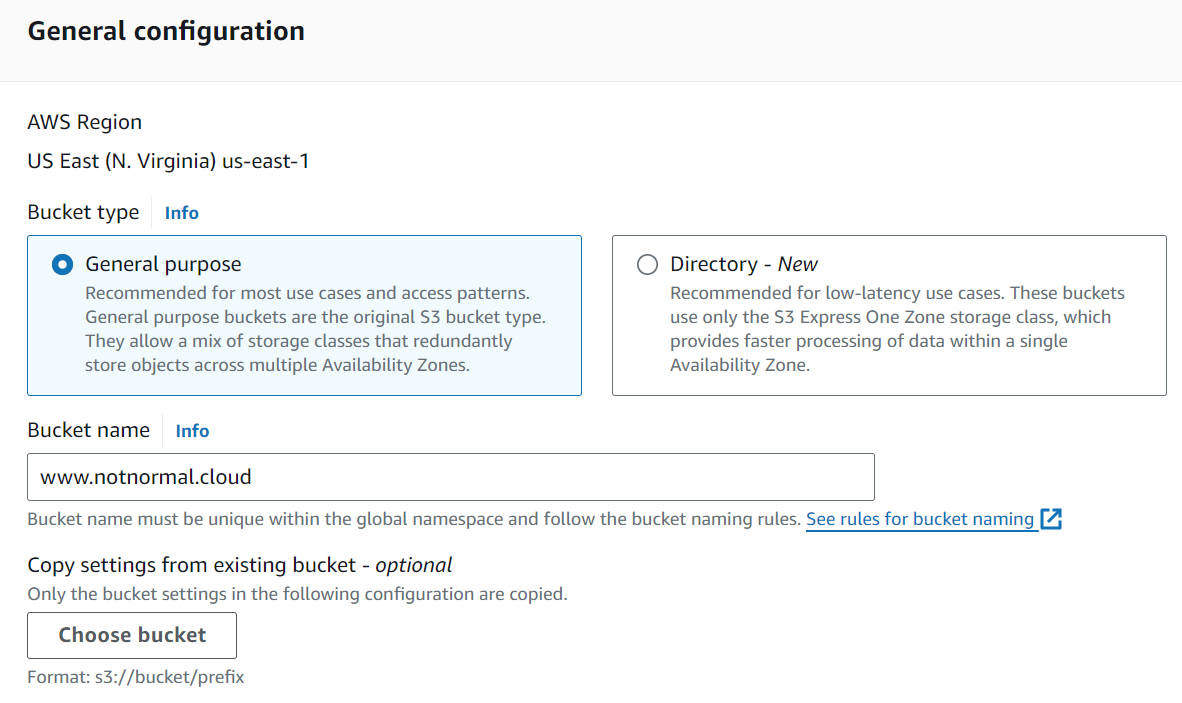
Create an additional bucket for the WWW prefix, in this case www.notnormal.cloud. This time don’t make any other configuration changes and click Create bucket.
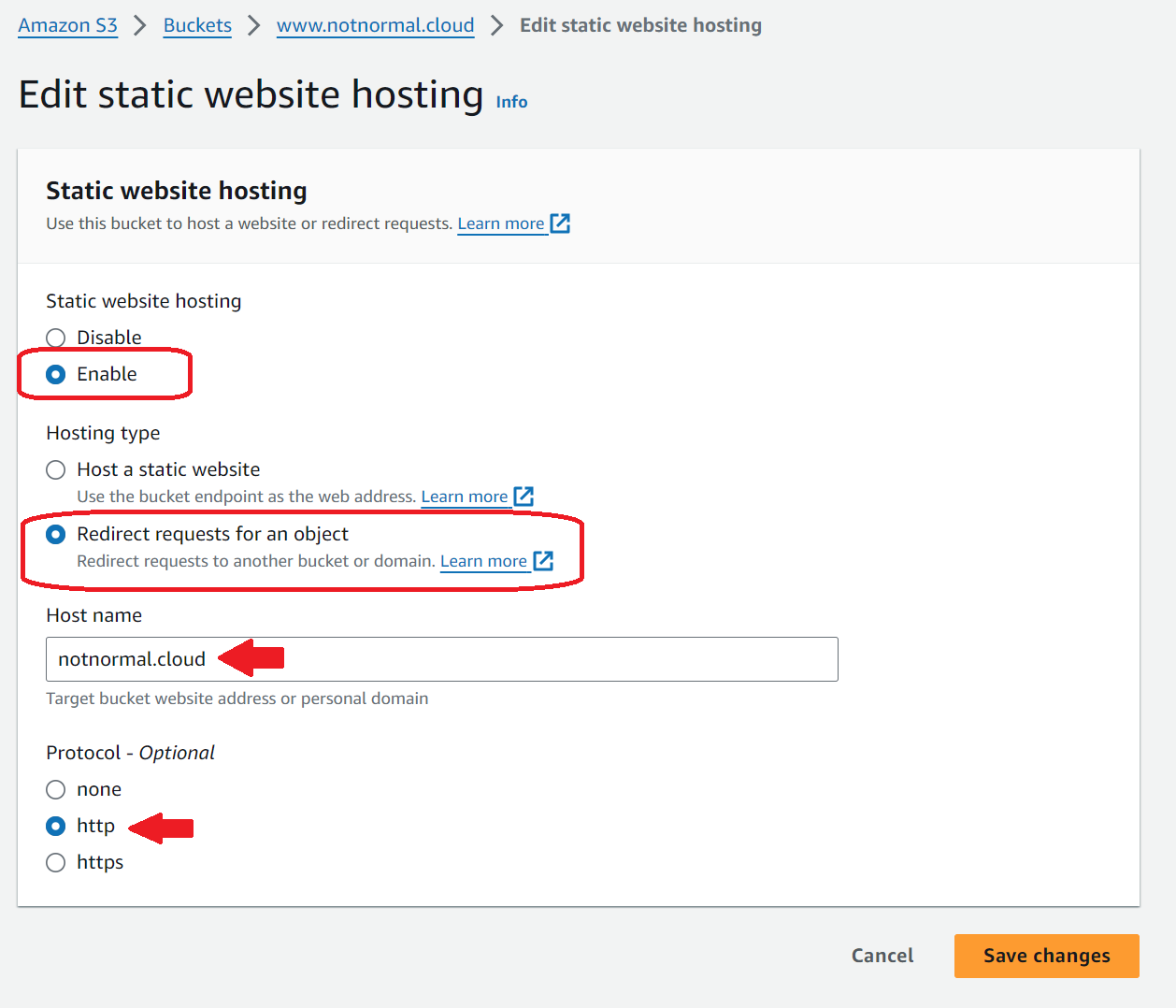
Finish off the configuration for this www bucket by clicking on it, click on properties, find Static website hosting at the very bottom again, click edit.
Click to enable static website hosting. This time choose Redirect requests for an object, put in the domain without the prefix in the Host name box, and choose the http protocol. Click Save changes.
Step 4: Finish DNS
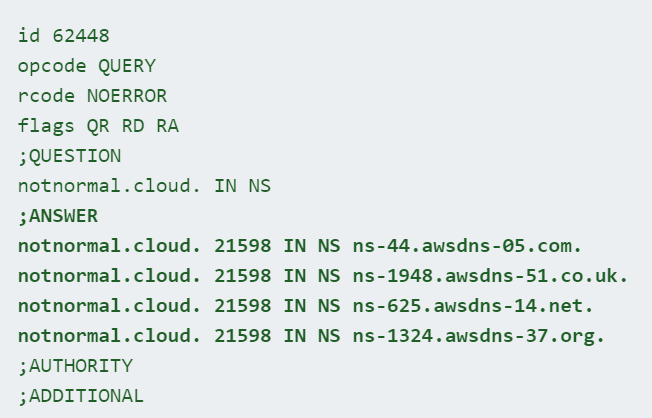
By this point hopefully enough time has passed. Flip back to the Google tool I mentioned earlier, you can see our nameserver information has been updated since you can see AWS in the name server entries. This means the rest of the internet is going to be looking at AWS when it tries to resolve our notnormal.cloud domain instead of the registrar Porkbun.
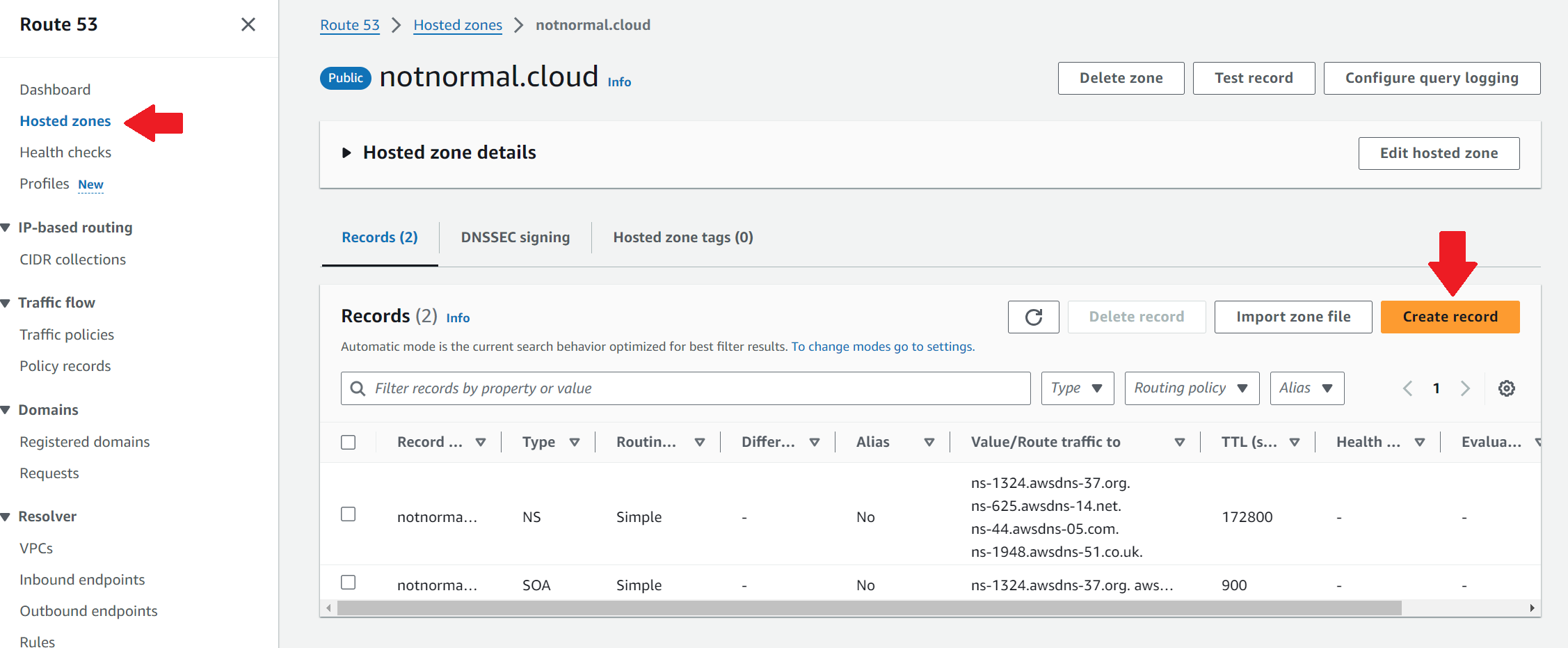
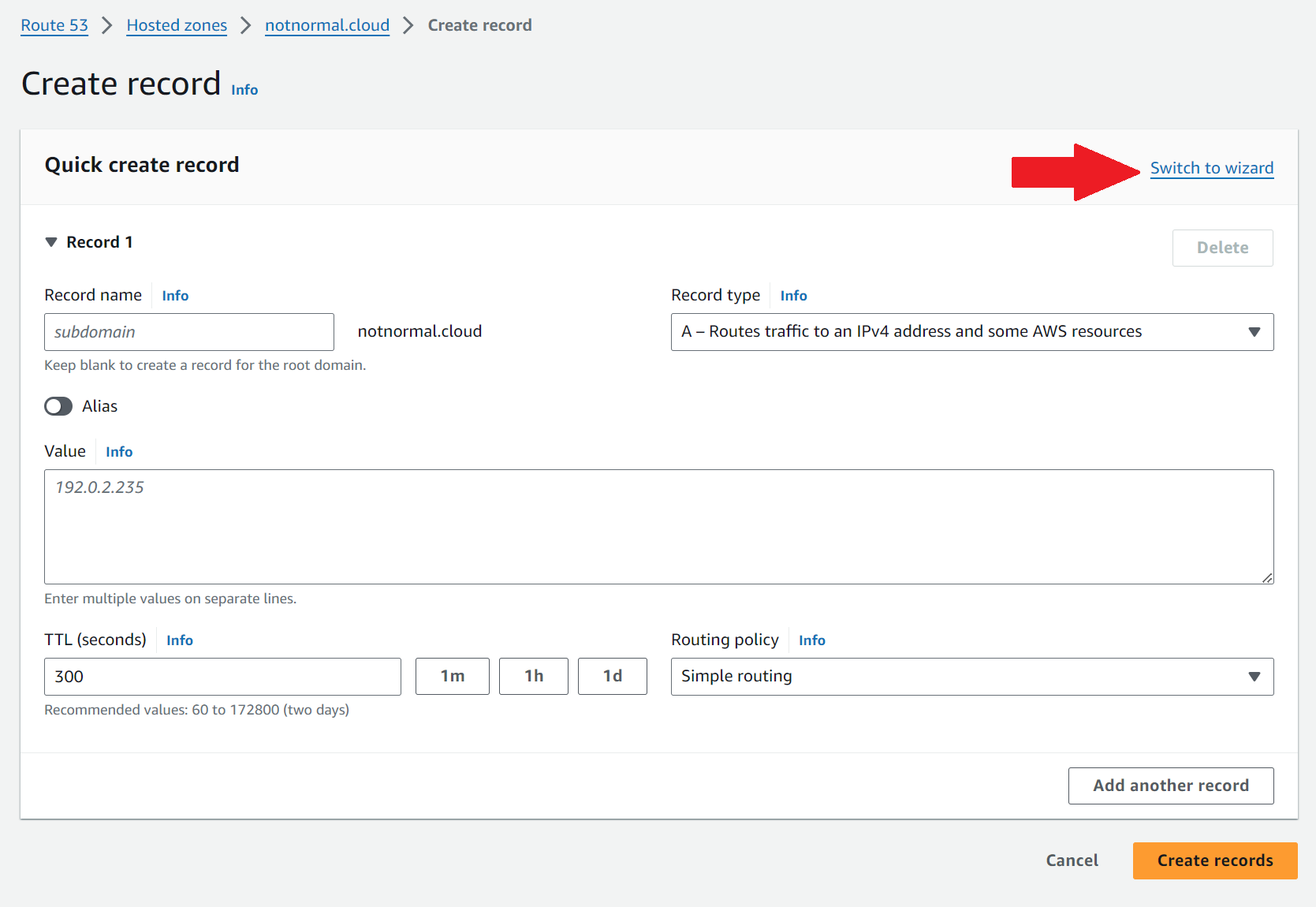
Now browse to Route 53, click on the Hosted zones, click on your domain, click on Create record.
Click Switch to wizard
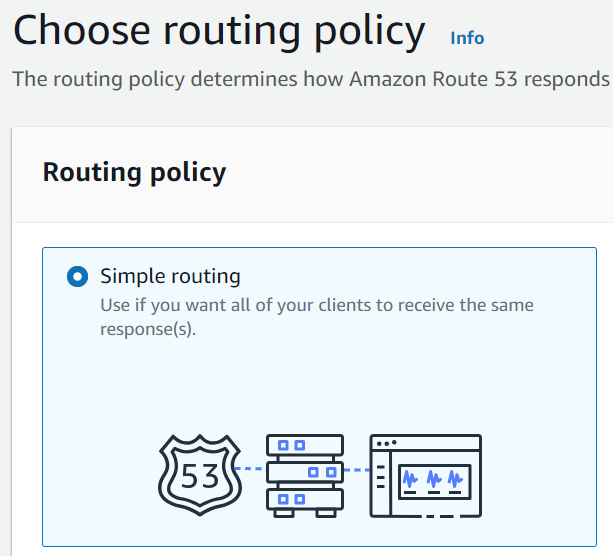
Leave Simple routing selected, click next
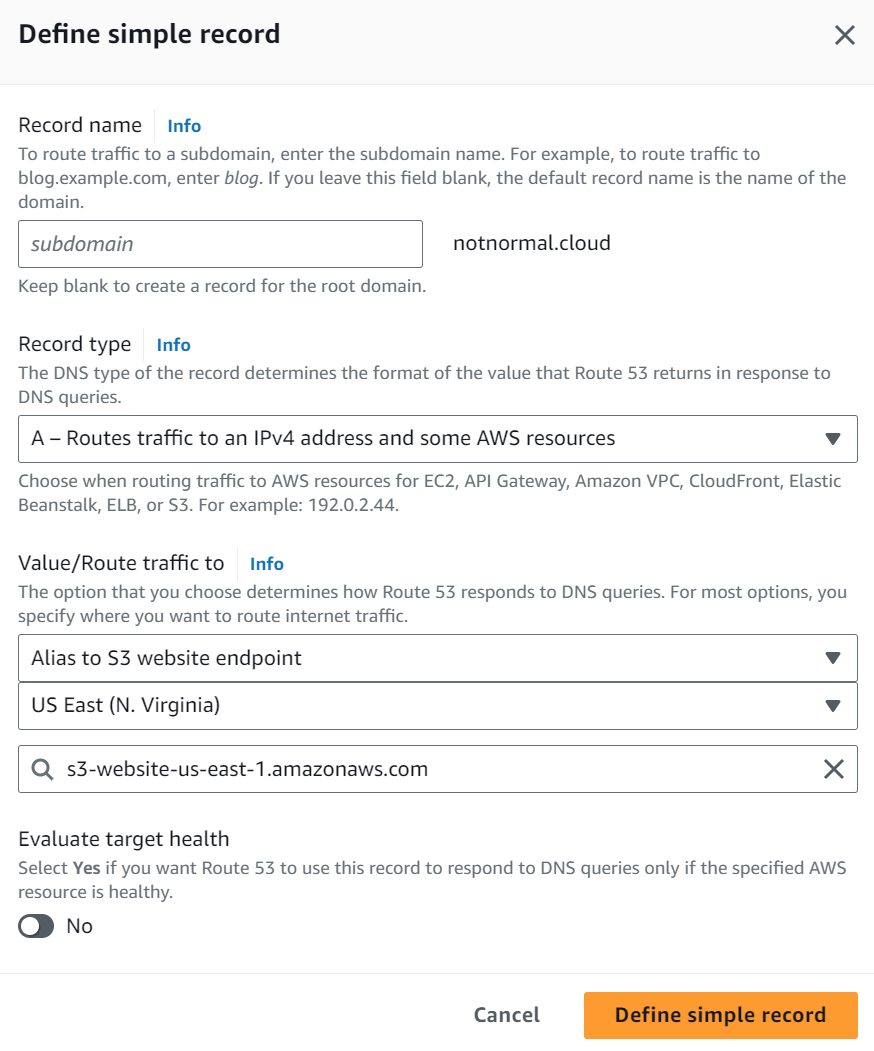
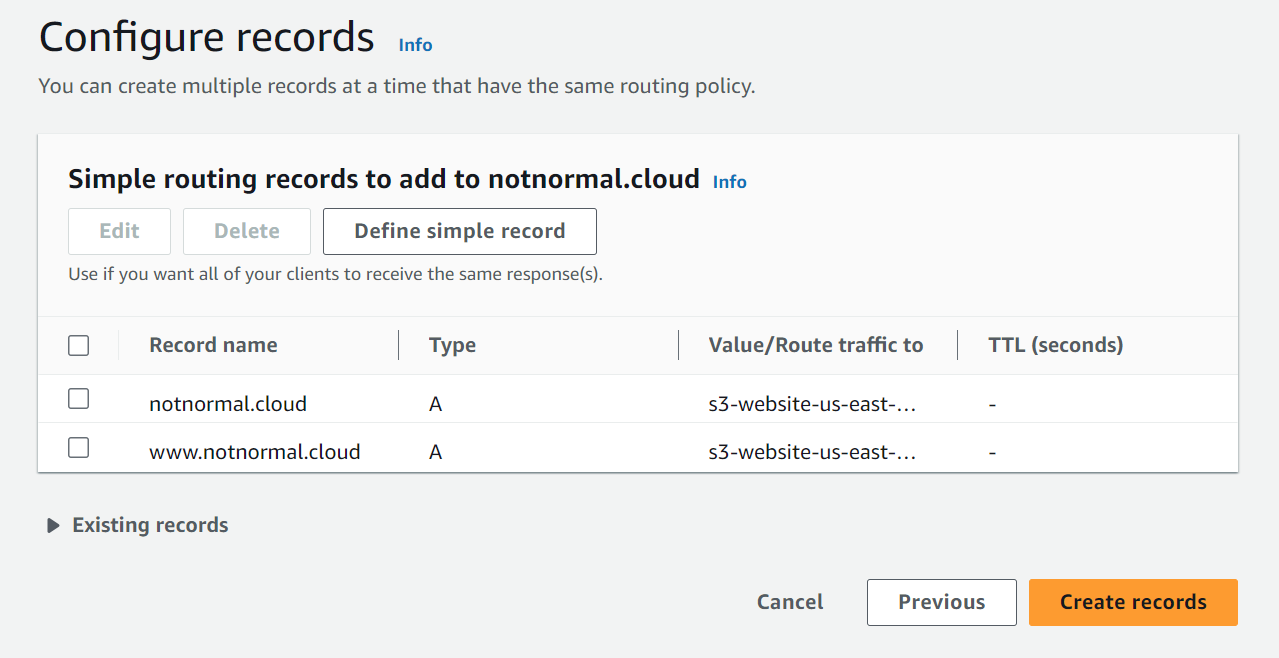
Click Define simple record. Leave subdomain empty for now. Leave A record type selected. In Value/Route traffic to click Choose endpoint and select Alias to S3 website endpoint Choose the region that your bucket lives in. If you did everything correct up to here, you should see your bucket’s FQDN listed in the dropdown now. Select it. Uncheck Evaluate target health. Click Define simple record.
If it does not show up, there was a mistake somewhere. Maybe the wrong region?
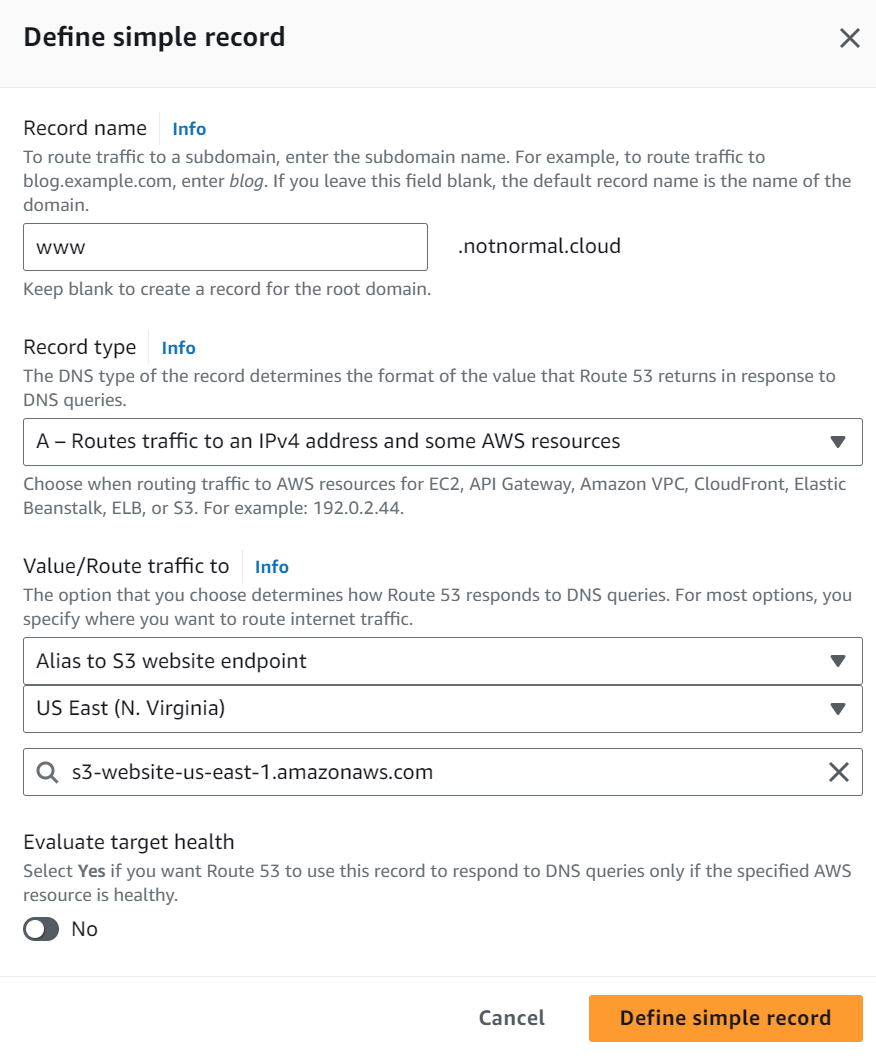
Now before you click Create records, we want to define the WWW prefix record. Click Define simple record one more time. Enter www in the subdomain box this time, leave A record selected, select Alias to S3 website endpoint, same region, NOW we should see the WWW prefix’ed domain. Uncheck Evaluate target health. Click Define simple record.
Now it should look something like this. Click Create records.
You will see a message about the record creations pending.

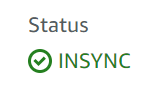
Click on view status. And very shortly you will see the status flip to INSYNC.
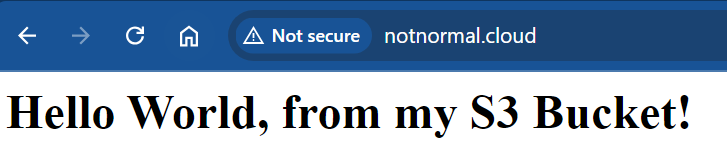
Now you should see that reflected in your web browser if you plug in your domain:
Part 5: Clean up
At this point you have a fully functional static website. Static meaning no dynamic server side processing is happening via scripts at all. Just simple website files being served up to the world.
If this was just a test, be sure to clear out your buckets and Route 53 configurations because you WILL be charged for them over time. It’s not very much but it’s not free.
References:
Use your domain for a static website in an Amazon S3 bucket
Tutorial: Configuring a static website using a custom domain registered with Route 53