
Thing 2: Publish to S3 bucket from Github Repo
Picking up where Thing 1 left off, we’re going to explore how to populate an S3 bucket directly and automatically from a Github repository on a check in to the main branch.
The starting point here is we have an S3 bucket that is serving up a single html file.

Goal of this thing:
Update static website source files in S3 from Github on code push to main.
As with most things in technology there are tons of ways accomplish a thing. This is just one way.
All steps and screenshots are accurate as of August 2024. Things change. Your results may vary, people of the future.
Part 1: Set up a repo on Github
I’ve picked a random website template I found via Google on a website called HTML5up. I’m going to go with the Story theme because why not. It looks pretty.

Head on over to Github and create a new repo.
As far as I know this does have to be a public repo. This is totally fine since these are all static web files so there is nothing secret in them.
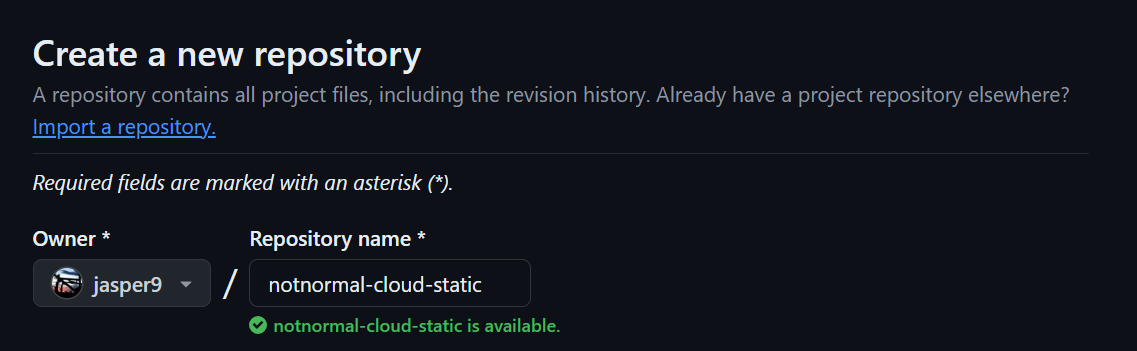
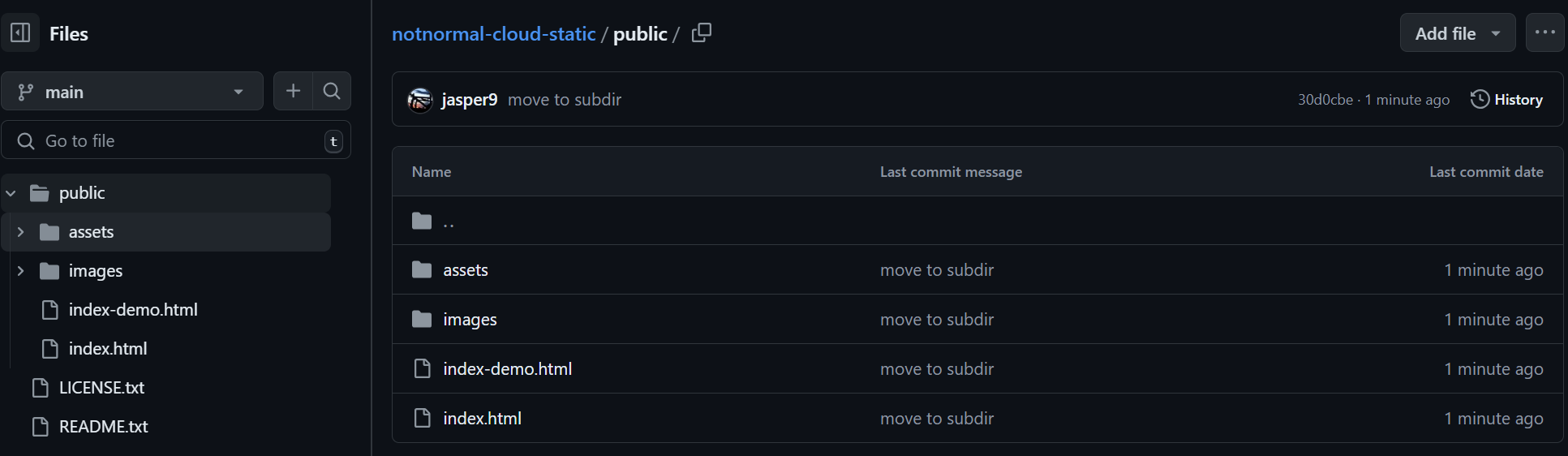
I do not intend this to be much of Github basics guide so I’ll just summarize by saying in some way check in those files to your new repo in the main branch.
The main thing to be careful of is place all your web files in a sub directory called public.
If you are doing this from your desktop and not comfortable with the command line, Github Desktop may be a good solution. It’s super easy to use.
Similarly, I do not intend for this thing to be an AWS security guide. So that said use AWS best practices to use a scoped down role and generate an access key pair.
Now with that key pair in hand, we need to put them securely in place on Github.
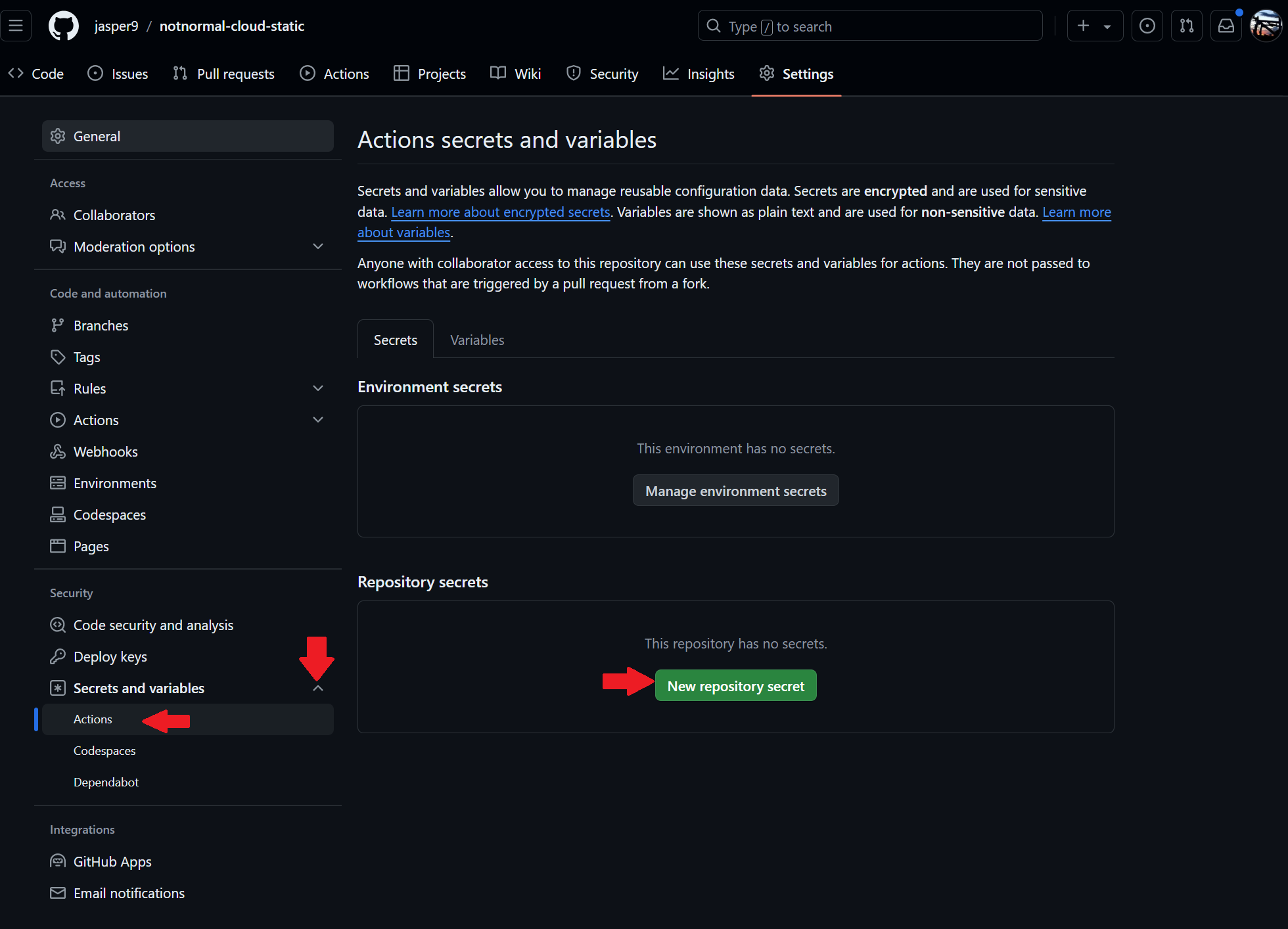
Click Settings on the top nav bar of your repo.

In the left menu under Security, expand Secrets and variables
Click Actions
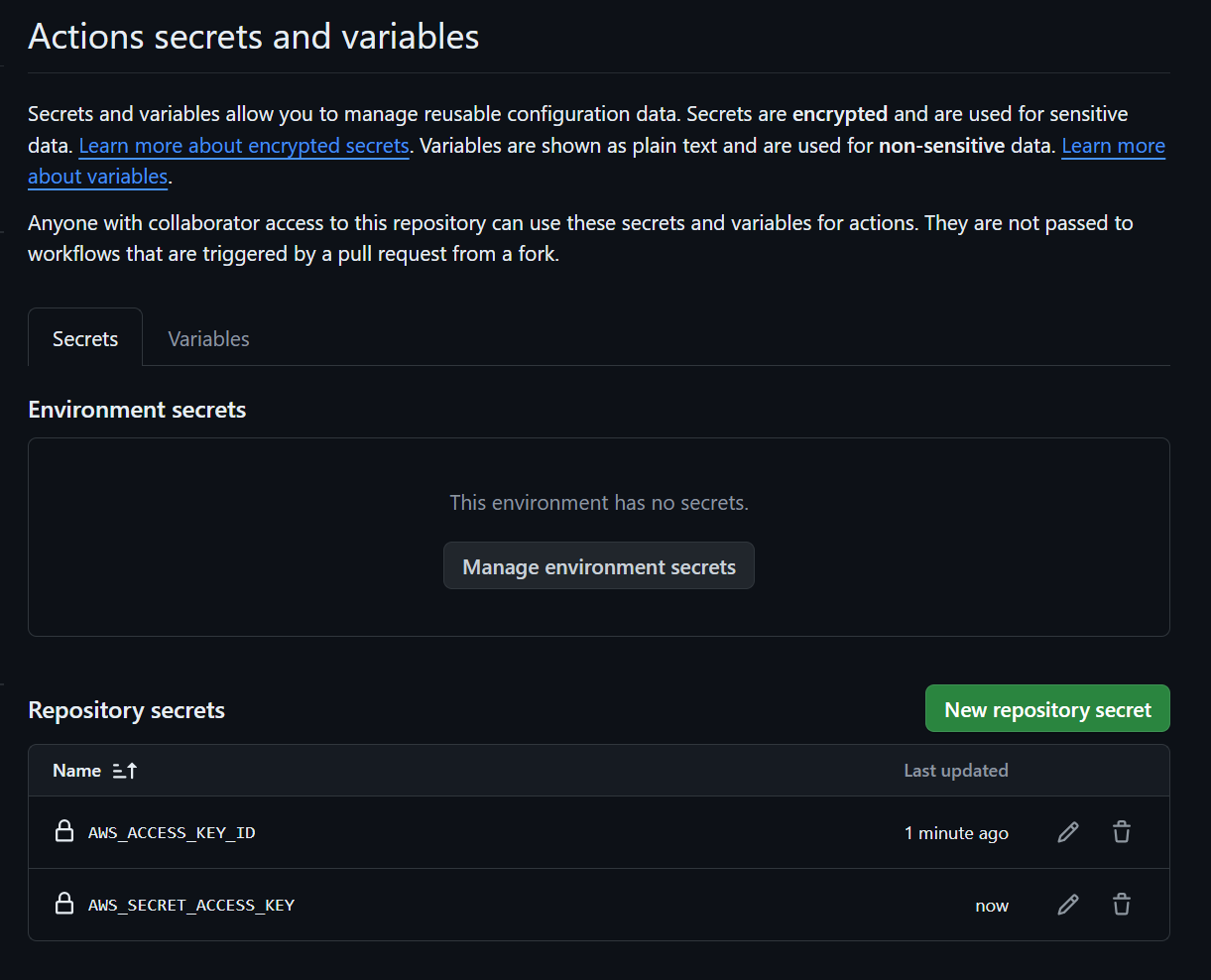
Click New repository secret
Create a new secret for AWS_ACCESS_KEY_ID, and enter your access key
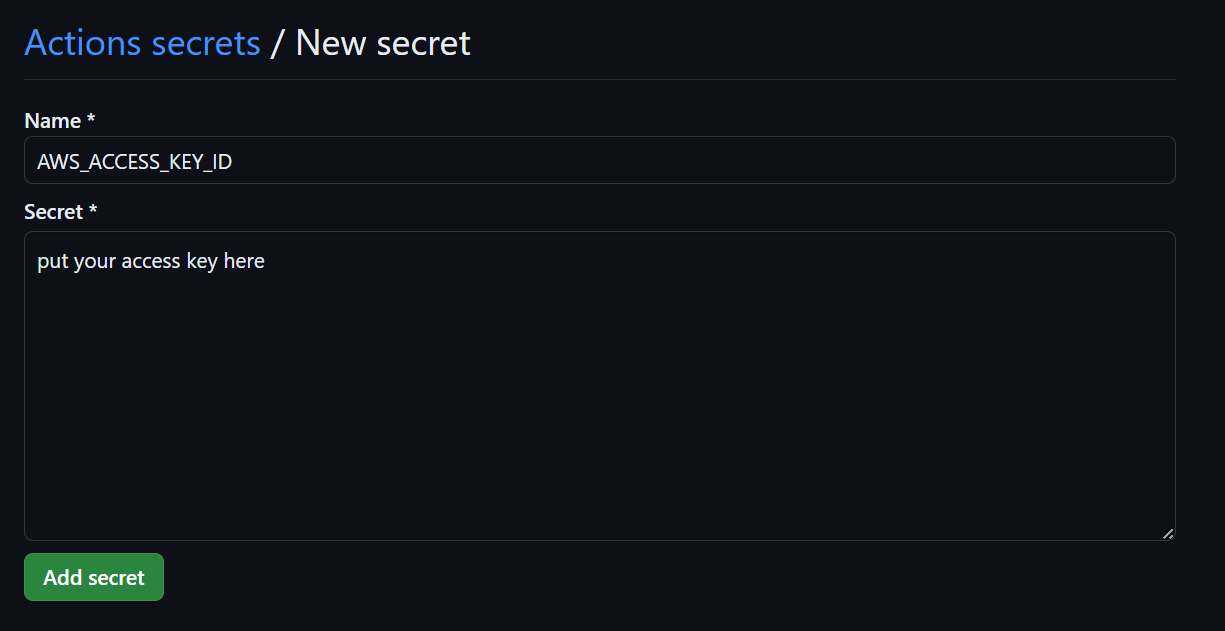
Create one more for the secret AWS_SECRET_ACCESS_KEY and enter it.
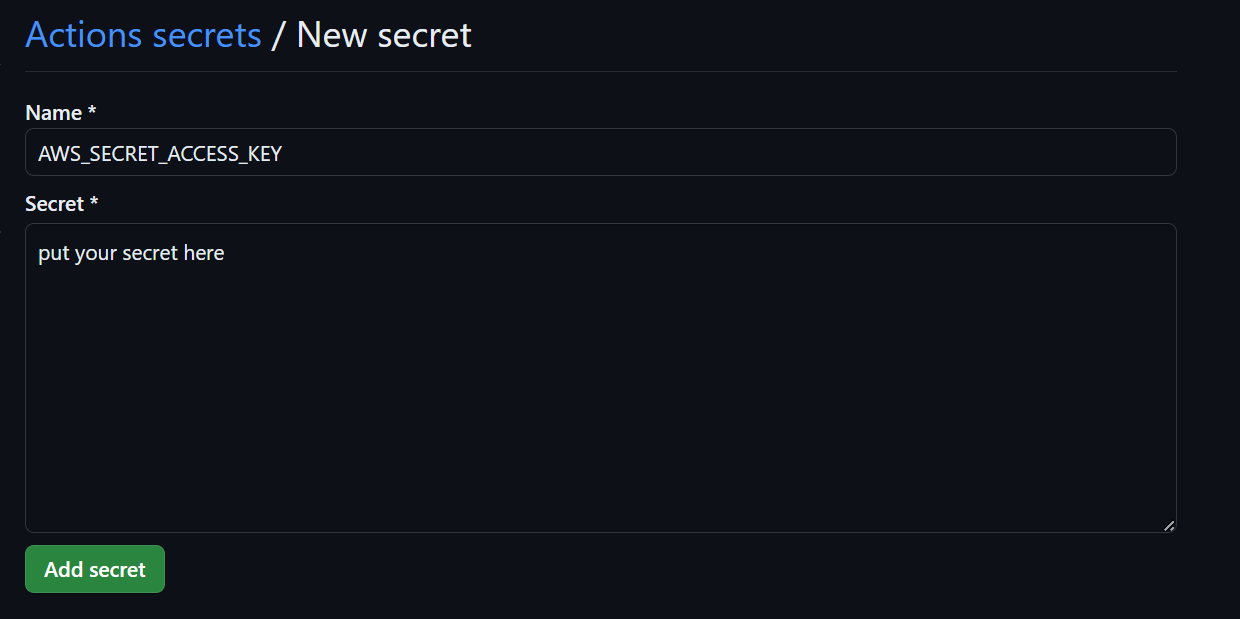
They should look something like this
Click Variables. Create a new repository variable for the bucket name. Be sure you use the root domain name, and NOT the www prefix.
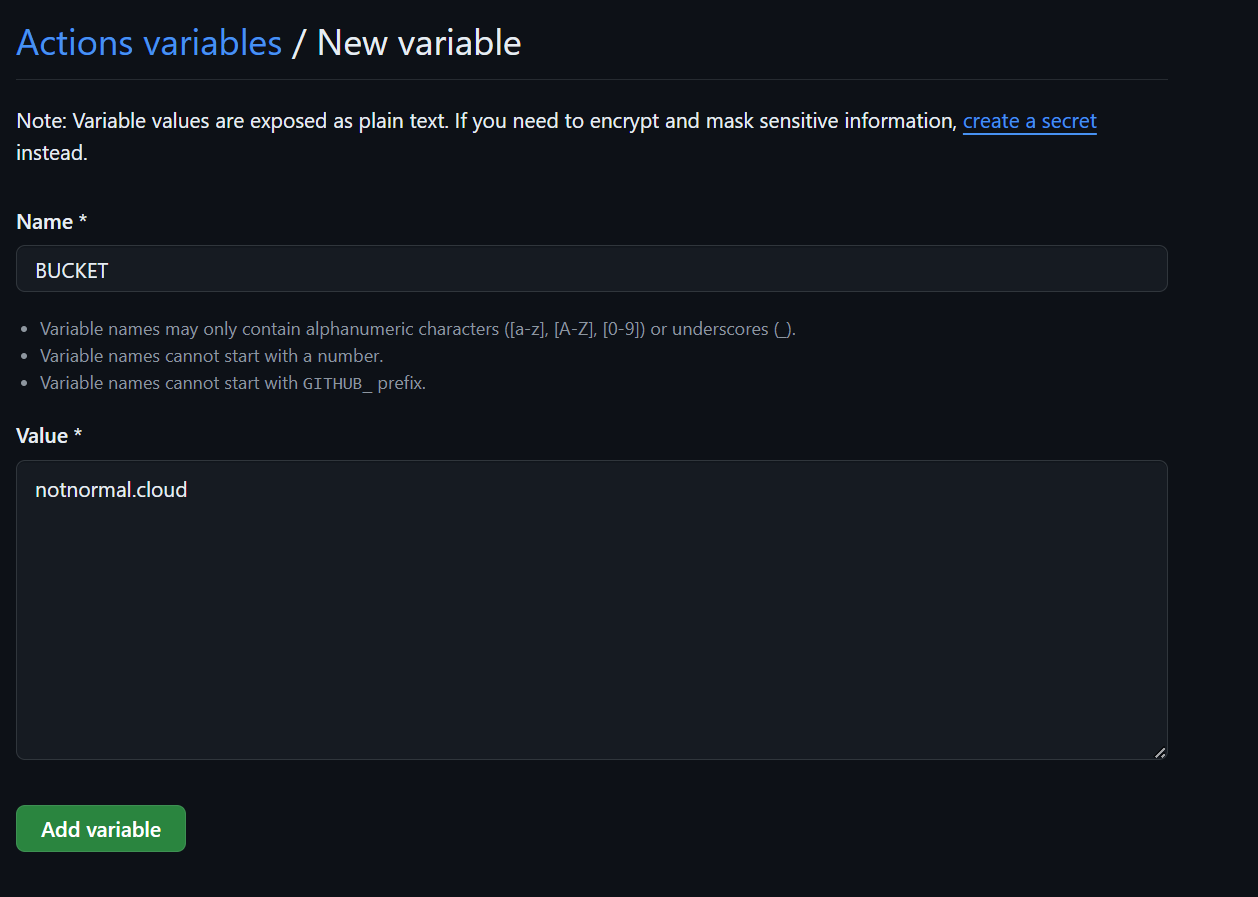
It should appear like this

This is where the Github Action magic comes in. Create a new file with the following path in the repo: .github/workflows/main.yml
With the following contents.
name: Upload Website

on:
  push:
    branches:
    - main

jobs:
  deploy:
    runs-on: ubuntu-latest
    steps:
    - name: Checkout
      uses: actions/checkout@v1

    - name: Configure AWS Credentials
      uses: aws-actions/configure-aws-credentials@v1
      with:
        aws-access-key-id: ${{ secrets.AWS_ACCESS_KEY_ID }}
        aws-secret-access-key: ${{ secrets.AWS_SECRET_ACCESS_KEY }}
        aws-region: us-east-1

    - name: Deploy static site to S3 bucket
      run: aws s3 sync ./public/ s3://${{ vars.BUCKET }} --delete
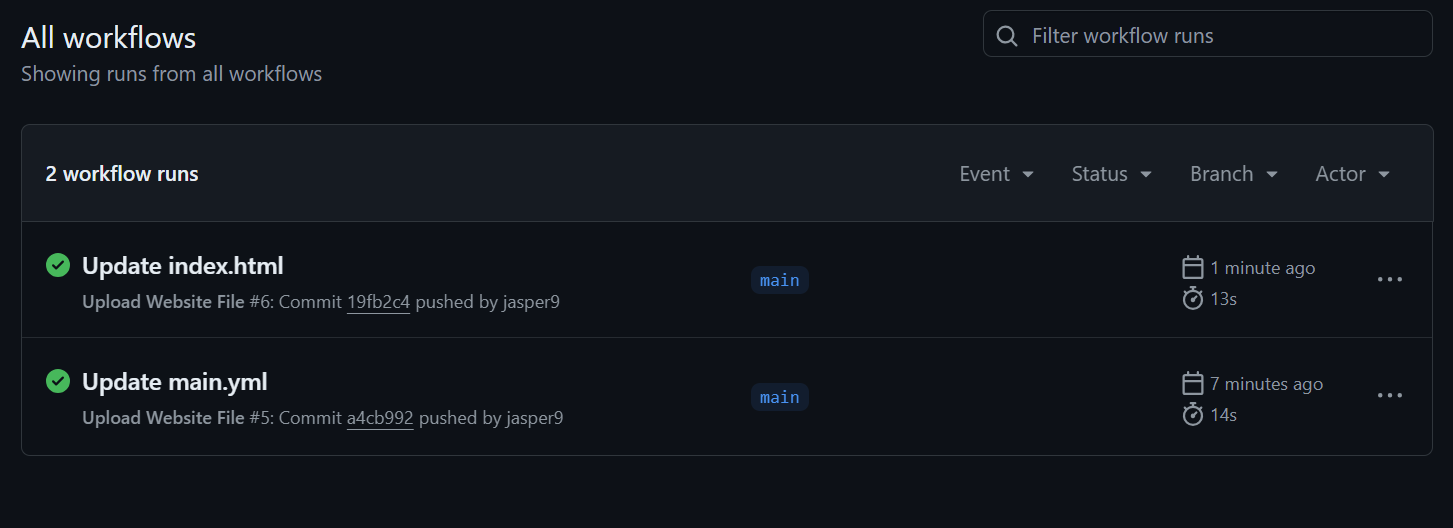
Now as soon as you commit this file to the main branch, a github action will start. Browse to the actions section to see the results. If it fails, click on the run for more details and try to find where it went wrong. Maybe a typo in the secret or variables?
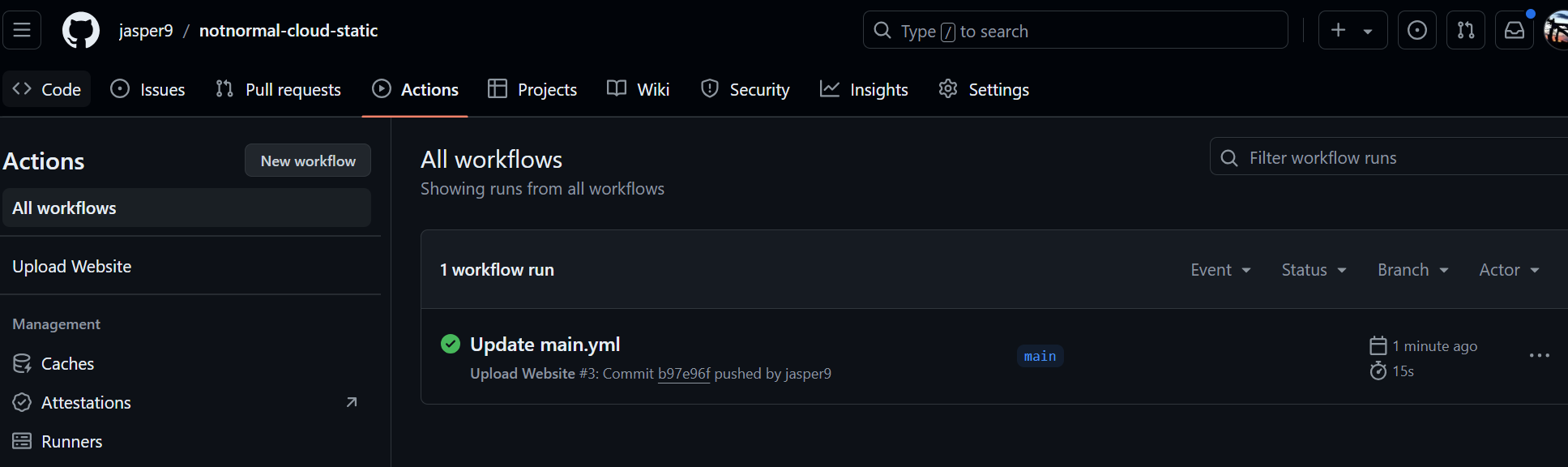
Refresh your website and you should see your fancy template!

Now any time you make a commit to this branch, the github action will kick off and automatically move it over to S3. If you are as old as me, this feels like when we used to FTP files to web servers for every change. Good times.
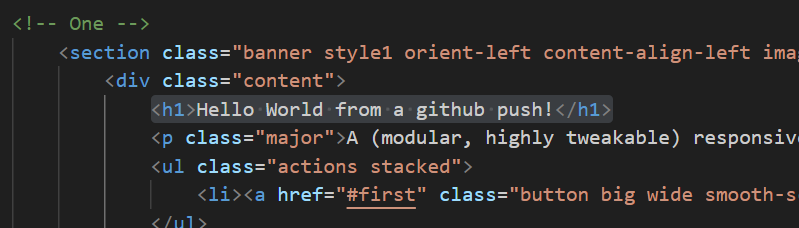
Make a change in VS Code:
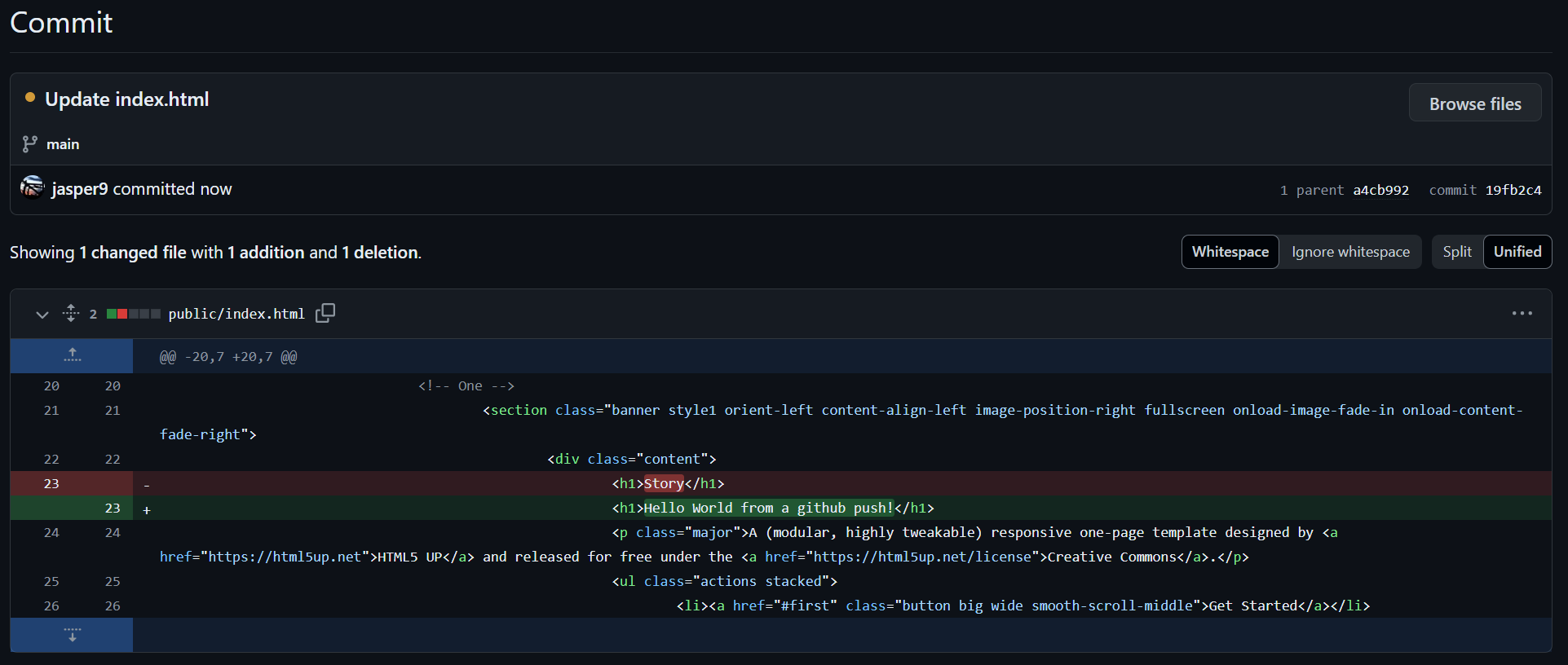
Commit on Github:
Github action ran:
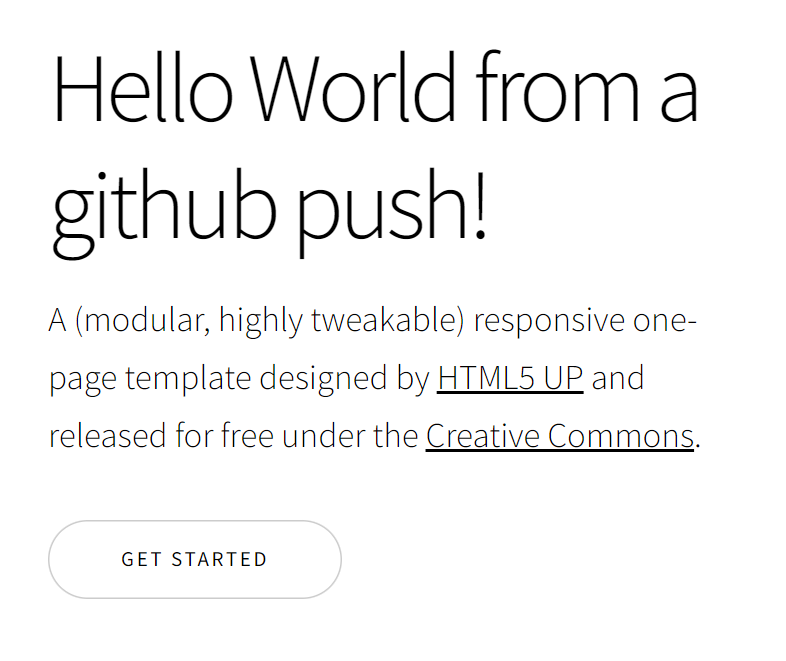
Change is live right away:
References: